Every audio converter promises the same thing: drop a file in, pick a format, get it back. What none of them tell you is what they quietly changed on the way through — the bitrate they chose for you, the sample rate they resampled to, whether a “lossless” conversion really was lossless. So we ran the same audio file through the most-used free online audio converters and measured the files that came back.
Disclosure: this blog is published by RedPanda Compress, which is one of the tools tested. It went through the same procedure as the others, and the numbers are reported the same way.
The short answer
- Best defaults for MP3: CloudConvert. It is the only server-side tool here whose out-of-the-box MP3 is high quality — 232 kbps VBR, and it measured very slightly cleaner in the treble than our reference. Free use is capped at 10 conversions a day.
- Fastest, and nothing leaves your machine: RedPanda Compress runs the conversion in the browser, so there is no upload at all. It wrote a 192 kbps MP3 in 15.8 seconds and did a lossless FLAC → WAV conversion in 0.7 seconds.
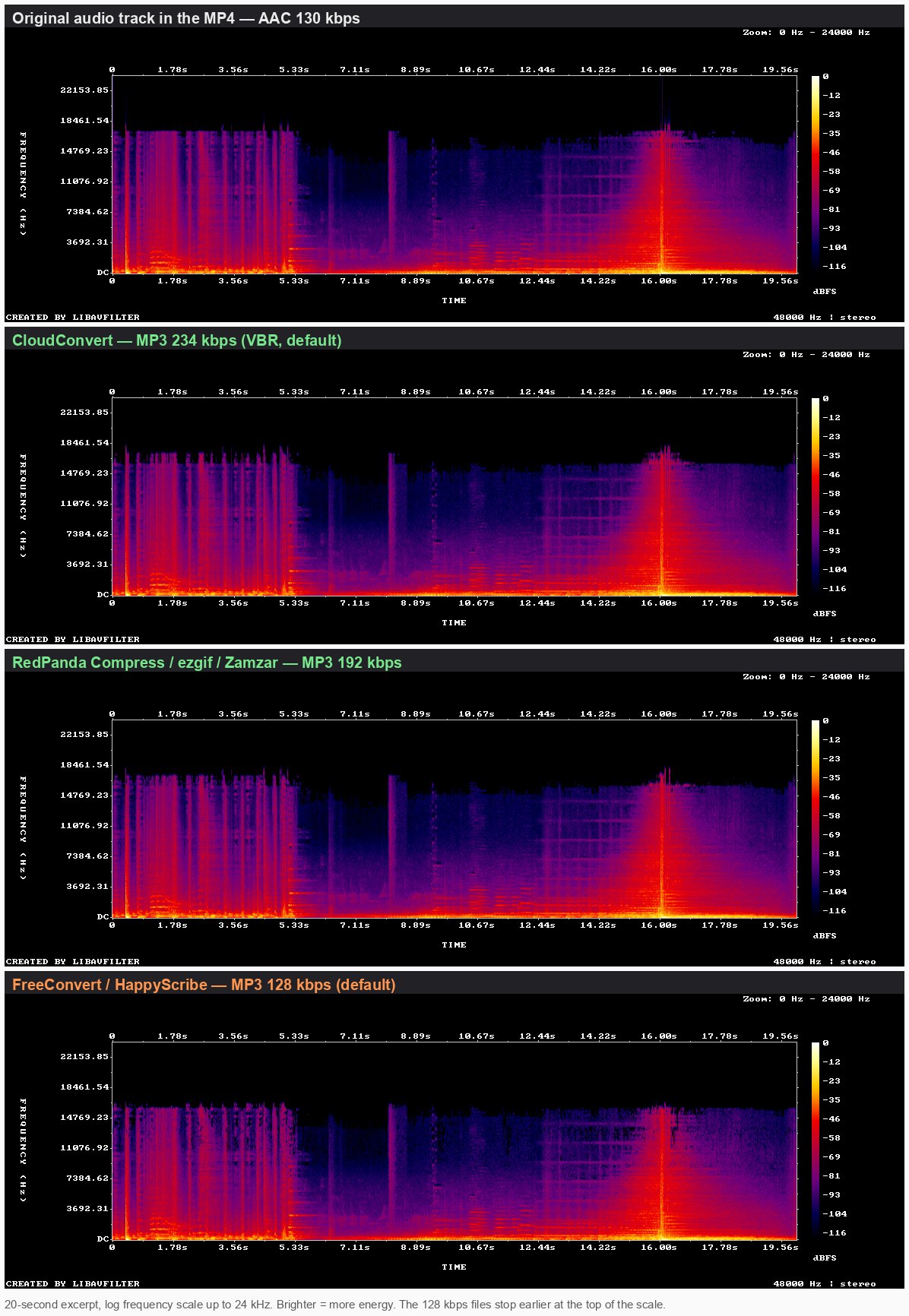
- Watch the default bitrate: FreeConvert, HappyScribe and Online Audio Converter all default to 128 kbps MP3 — the lowest of anything we tested, and measurably thinner at the top end. All three let you raise it; most people never open the panel.
- Watch the sample rate too: Online Audio Converter’s default converts a 48 kHz file to 44.1 kHz — even when you ask for a lossless WAV. It was the only tool that did not hand back the original audio unchanged.
How we tested
- The file: three minutes of the Big Buck Bunny soundtrack (CC-BY, Blender Foundation) — the same source as our video compressor comparison — decoded to a 48 kHz, 16-bit stereo WAV of 32.96 MB, plus a FLAC copy of the identical audio at 10.62 MB. Anyone can download the source and repeat this.
- Two jobs, not one. First a lossy job — WAV to MP3, which is what most people actually do. Then a lossless job — FLAC to WAV, where there is a single correct answer: the audio that comes back should be identical, sample for sample, to the audio that went in.
- Defaults only. We changed nothing. Every one of these tools has an options panel; the point of the test is what happens when you don’t open it.
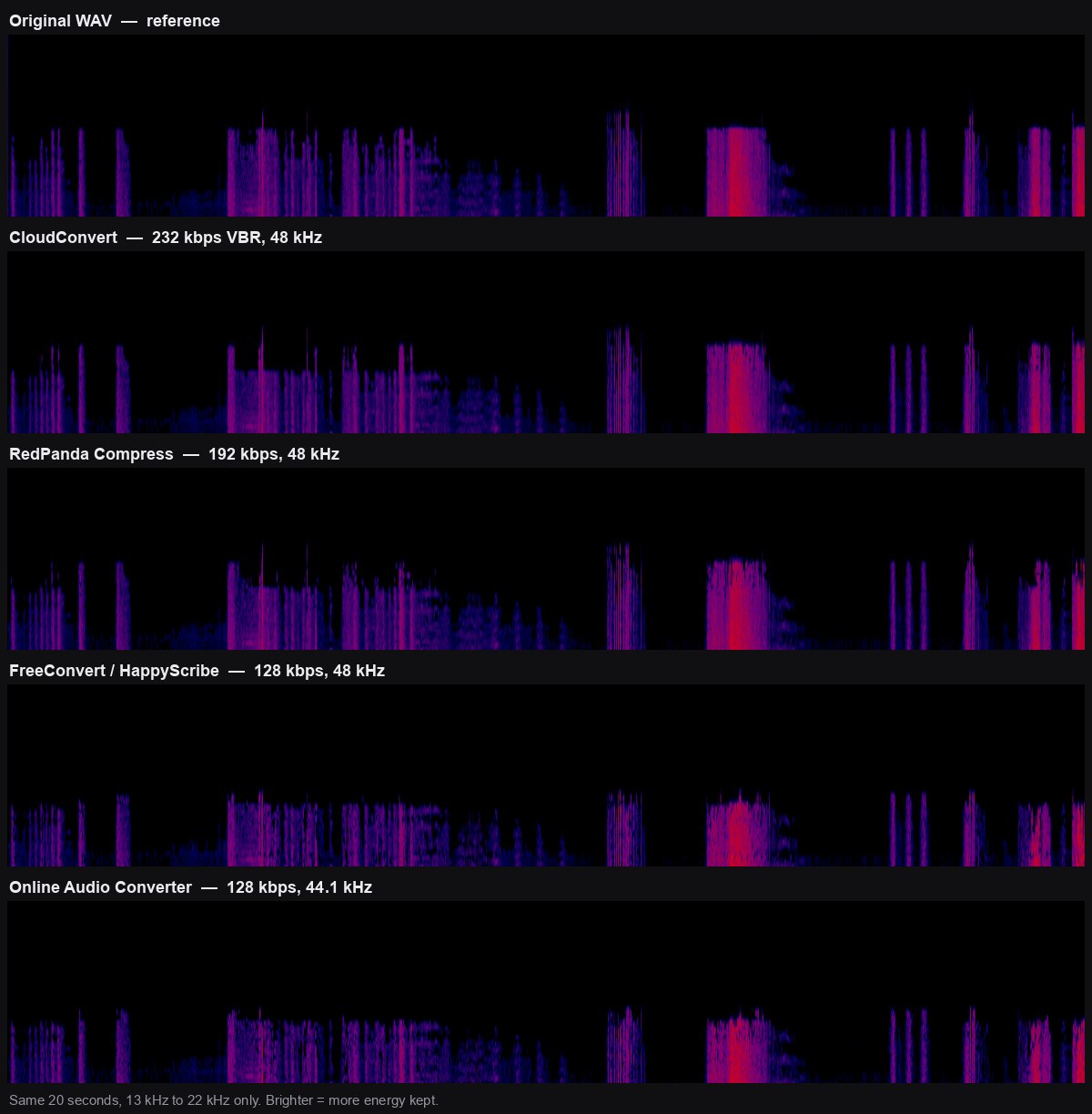
- What we measured: the format, bitrate, sample rate and size of the returned file; the energy above 15 kHz compared with the original (this is where low-bitrate MP3 encoders cut first); for the lossless job, the MD5 of the decoded audio and a null test — playing the returned file against the original with the polarity flipped, so that anything left over is the difference between them.
- Which tools: the free web converters ranking for “audio converter” in US organic search (roughly 12K searches a month) — Online Audio Converter, FreeConvert, CloudConvert and HappyScribe — plus RedPanda Compress. Sites that only offer a desktop installer were left out.
- The machine: an 8-core Apple Silicon Mac in Chrome. For everything except RedPanda, most of the elapsed time is the upload, so it depends on your connection, not on the tool.
Test 1: WAV to MP3, at each tool’s default
| Tool | Default MP3 | Sample rate | Treble vs original | Time |
|---|---|---|---|---|
| CloudConvert | 232 kbps VBR 5.23 MB | 48 kHz unchanged | +0.2 dB no loss | ~20 s |
| RedPanda Compress | 192 kbps 4.32 MB | 48 kHz unchanged | −0.02 dB no loss | 15.8 s no upload |
| FreeConvert | 128 kbps 2.88 MB | 48 kHz unchanged | −1.1 dB | minutes upload-bound; see below |
| HappyScribe | 128 kbps 2.88 MB | 48 kHz unchanged | −1.1 dB | 9–12 min then an ad |
| Online Audio Converter | 128 kbps 2.88 MB | 44.1 kHz resampled | −1.5 dB | 25–65 s mostly upload |
Two tools returned an MP3 with no measurable loss in the top end, and three returned one that was measurably thinner. That difference is entirely the default bitrate — and it is the one setting almost nobody changes.
Test 2: FLAC to WAV, where “lossless” has to mean lossless
Converting FLAC to WAV should not be a judgement call. FLAC is lossless compression; WAV is the raw audio. Decode one into the other and the samples should come out exactly as they went in. So we compared the MD5 of the returned audio against the MD5 of the original, which passes only on a perfect, sample-for-sample match.
| Tool | Sample rate | Identical to the original? | Time |
|---|---|---|---|
| RedPanda Compress | 48 kHz | Yes — null test is digital silence | 0.7 s no upload |
| CloudConvert | 48 kHz | Yes — null test is digital silence | under 8 s |
| FreeConvert | 48 kHz | Yes — null test is digital silence | ~1 min mostly upload |
| HappyScribe | 48 kHz | Yes — null test is digital silence | ~7 min then an ad |
| Online Audio Converter | 44.1 kHz | No — resampled | 10–25 s |
Four out of five passed. The one that didn’t is worth explaining carefully, because it is not a quality problem in the way you might expect: Online Audio Converter’s WAV setting has a quality slider that defaults to “CD Quality 44.1 kHz”, and our file was 48 kHz. Its resampler is a good one — the leftover difference measured about −100 dBFS, which nobody can hear. But the file you get back is not the file you put in, its sample rate has silently changed, and if you are feeding it into a video edit or a DAW session running at 48 kHz, that is a real problem. The slider does have a 48 kHz position. It just isn’t the default.
Tool by tool
CloudConvert: the best defaults of any server-side converter
CloudConvert was the only uploading tool that got both jobs right without being asked. Its MP3 default is a variable bitrate averaging 232 kbps, which measured a touch cleaner in the treble than the reference, and its FLAC to WAV came back bit-identical in under eight seconds. The options panel is also the most complete of the group: bitrate, VBR quality, sample rate, channels, volume, trimming, and a “copy” mode that rewraps the existing audio without re-encoding it. The catch is the free tier — 10 conversions per day.
RedPanda Compress: no upload, and the fastest by a wide margin
Because the conversion runs inside the browser, the file never goes anywhere: no upload, no queue, no server-side copy to delete afterwards. That is also why the FLAC to WAV job finished in 0.7 seconds while the uploading tools were still sending the file. The MP3 default is 192 kbps, which measured within 0.02 dB of the original in the treble, and the WAV output was bit-identical. There is no account, no daily cap and no watermark. The trade-off is that the work happens on your own hardware, so an older laptop will be slower, and there are only three output formats — MP3, M4A and WAV — rather than the fifty-odd a server-side converter can offer.
Online Audio Converter: the most popular one, and the only one that changed the audio
This is the highest-traffic free audio converter on the web, and the interface is genuinely good — formats across the top, a quality slider underneath, Google Drive and Dropbox as sources, and a batch mode. But both of its defaults move away from the original: 128 kbps for MP3, and 44.1 kHz for WAV. If you use it, move the slider before you convert; for WAV that means pushing it to the “DVD 48 kHz” position when your source is 48 kHz.
FreeConvert: correct on lossless, low on MP3
FreeConvert handled the lossless job perfectly — 48 kHz, bit-identical — but its MP3 default is 128 kbps, and our measurement put it 1.1 dB down in the treble. The advanced options do let you set the bitrate, sample rate and channels before converting. Uploads dominate the clock: the 10.6 MB FLAC job took about a minute end to end on our connection, and the 33 MB WAV job never got past the upload stage on two separate attempts, so we are not quoting a figure for it. On a faster upstream connection than ours this is likely a non-issue; on a slow one it is the whole experience.
HappyScribe: accurate, extremely slow, and there’s an ad in the way
HappyScribe is a transcription company with a converter attached, and the converter is honest about the audio — its FLAC to WAV came back bit-identical. It is just very slow: nine to twelve minutes for the three-minute WAV to MP3 job, and about seven minutes for the FLAC, on a file the other tools finished in seconds. When it does finish, the download button is replaced by “Watch a short ad to download”. There are no bitrate options at all, and the MP3 it writes is 128 kbps.
What to check before you convert
- Find the bitrate before you press convert. Three of the five tools here default to 128 kbps. If the panel says 128 and your source is better than that, raise it to 192 or higher — the file is bigger and nothing else about it is worse.
- If the job is lossless, check the sample rate. FLAC to WAV, WAV to FLAC, ALAC to WAV — none of these should change the sample rate. If the tool offers you a “quality” choice for a lossless format, that is a resampler, and the safe answer is whatever matches your source.
- Don’t re-encode what is already fine. Converting an MP3 to another MP3 loses a little every time. If you only need a different container, look for a “copy” or “remux” option.
- Think about where the file goes. Every tool here except RedPanda uploads your audio to a server and deletes it later on its own schedule. For a music file that is a non-issue; for an interview, a client’s recording or anything under NDA, it is the whole question.
Frequently asked questions
What is the best free audio file converter?
For MP3 at the best out-of-the-box quality, CloudConvert — its default is 232 kbps VBR and it measured no loss against our reference. For speed and privacy, RedPanda Compress, which converts in the browser with no upload and did a lossless FLAC to WAV in under a second. Both returned the original audio unchanged on the lossless test.
Does converting audio always lose quality?
No. Converting between lossless formats — FLAC, WAV, ALAC, AIFF — is exact, and four of the five tools we tested proved it by returning audio identical to the original. Quality is only lost when the destination is a lossy format such as MP3, AAC or Opus, or when a tool resamples the audio on the way through.
What bitrate should I pick for MP3?
192 kbps is a sensible floor for music and is where our own converter sits; 256 or 320 kbps if you are archiving and the file size doesn’t matter. 128 kbps is fine for speech — a podcast, a lecture, a voice memo — and that is really what it exists for. The gap this test measured between 128 and 192 kbps was about 1.1 dB of energy above 15 kHz.
Is it safe to upload audio to an online converter?
It depends entirely on the file. The reputable services here state a deletion window — a few hours to a day — and honour it. But the file does sit on somebody else’s server in the meantime. If the recording is confidential, use a converter that runs in your browser, where nothing is uploaded in the first place.
Can I convert FLAC, OGG, WMA, M4A and AAC too?
Yes — every tool in this comparison reads all of those. The server-side converters offer the longest format lists (CloudConvert and FreeConvert both run to hundreds of conversions, including video containers). A browser-based converter covers the common audio formats in and MP3, M4A or WAV out, which is most of what people actually need.
Conclusion
The converters that get talked about as interchangeable are not. On the lossy job the spread between them was entirely down to a default bitrate that three of the five set to 128 kbps. On the lossless job, where there is only one right answer, four got it right and the most popular tool on the list silently resampled the file. If you want the best MP3 without touching a setting, use CloudConvert. If you want it fast, unlimited, and without your audio leaving your computer, use RedPanda Compress. And whichever you pick, look at the bitrate before you press the button.

Fei is a skilled software engineer. He previously worked at Google and now at a startup. His expertise includes web media processing, cloud architecture, complex algorithms, and AI training and deployment. Beyond work, Fei enjoys diving into new knowledge and is a big fan of strategy games.