Fei is a skilled software engineer. He previously worked at Google and now at a startup. His expertise includes web media processing, cloud architecture, complex algorithms, and AI training and deployment. Beyond work, Fei enjoys diving into new knowledge and is a big fan of strategy games.
Video size is one of those things that feels like it should be straightforward—until you actually try to pick it manually. One export is 120MB, another is 800MB, both look “fine,” and suddenly you’re stuck wondering whether you’re wasting bandwidth or quietly destroying quality. The confusing part is that “size” isn’t really a setting; it’s the result of a bunch of other choices (bitrate, resolution, frame rate, codec, content complexity), and different videos chew through data at wildly different rates even at the same resolution.
So if you’ve ever asked “what’s the right size for this video?”, you’re not alone—and the good news is you can make it predictable with a simple workflow.
Key factors that affects the video size
Here is a table for key factors that affects the video size.
This is the most straightforward factor: bitrate is applied per second. Doubling the duration roughly doubles the file size, assuming all other settings stay the same.
Video Resolution
Higher resolutions contain more pixels per frame, which require more data to encode. A 4K video doesn’t just look sharper than 1080p—it also needs significantly more bitrate to avoid compression artifacts.
Camera Motion
Moving or handheld cameras introduce constant changes between frames. Because video compression relies heavily on reusing information from previous frames, more camera motion means less reusable data and a larger file size.
Object Motion
Even with a static camera, frequent movement within the frame (people walking, explosions, fast UI animations) increases complexity. The encoder must spend more bits to accurately represent these changes.
Video Codec (Advanced)
Newer codecs (like H.265 or AV1) are more efficient at compressing the same visual quality into fewer bits. Older codecs require higher bitrates to achieve comparable results, leading to larger files.
One handy video size estimation method
If you just want a fast and reasonably accurate way to estimate video size before exporting, start with this baseline (ref)
A 5-minute 1080p video is roughly 200 MB in most general cases.
This assumes:
Standard frame rate (24–30 fps)
Modern codec (H.264 / H.265)
Moderate motion and scene complexity
From there, you can adjust the expected size using simple multipliers based on content complexity.
Motion-Based Multipliers
Camera Motion → ×1.5
If your video has noticeable camera movement—handheld shots, pans, tracking shots, drone footage—expect the file size to increase by about 50%. Motion reduces compression efficiency, forcing the encoder to use more bits.
Object Motion → ×1.5
Frequent movement within the frame (people walking, fast animations, action scenes) also increases size. Even with a static camera, busy scenes demand higher bitrate to stay clean.
If both camera motion and object motion are present, these multipliers can stack.
Resolution-Based Multiplier
Resolution Increase → ×2 per level
Each step up in resolution increases pixel count significantly:
1080p → 1440p: ×2
1080p → 4K: ×4 (roughly two resolution steps)
Higher resolution means more visual data per frame, which directly translates to larger file sizes if quality is preserved.
Example (Putting It Together)
5-minute 1080p video → 200 MB
Handheld camera + moving subjects → ×1.5 ×1.5
Final estimate: ~450 MB
This method won’t replace platform-specific bitrate guidelines, but it’s extremely useful for planning exports, estimating upload times, and choosing compression targets before you ever hit “Render.”
Fei is a skilled software engineer. He previously worked at Google and now at a startup. His expertise includes web media processing, cloud architecture, complex algorithms, and AI training and deployment. Beyond work, Fei enjoys diving into new knowledge and is a big fan of strategy games.
Updated September 2026. We rebuilt our comparison of the best free online video compressor tools from scratch: one public test video anyone can reproduce, the most-visited online compressors in Google right now, upload and processing time measured separately, and an objective quality score (VMAF) for every file that came back.
Disclosure: this blog is published by RedPanda Compress, which is one of the tools tested. We ran it through the same procedure as everyone else and report its results the same way, including where it lost.
The short answer
Best quality at an exact file size:FreeConvert. Highest score in our test (VMAF 85.3) and finished in 2 min 10 s. The trade-offs: your video is uploaded, the page is heavy with ads, and the free tier has a 1 GB file limit plus a daily processing allowance.
Best if you don’t want to upload your video:RedPanda Compress. Everything runs inside your browser, so the file never leaves your device. It has no watermark and no daily cap, and quality was within about a point of FreeConvert (VMAF 84.1). It is slower: 6 min 10 s on our 8-core Mac.
Fastest:VidShift, 87 seconds, also without uploading. The catch is visibly lower quality at the same size (VMAF 74.0).
Not a good fit if you need a specific size: InVideo and HappyScribe only offer presets, and neither could get anywhere near 50 MB. Clideo’s presets are coarse too, and its free output is watermarked.
How we tested
The test file:Big Buck Bunny, the open-source short film from the Blender Foundation (CC-BY), encoded to the same spec as our previous test: 1280×720 at 24 fps, 9 min 56 s, H.264 video with AAC audio, 2.1 Mbps, 158.6 MB. Because it is openly licensed, you can download it and repeat any of these tests yourself.
The goal: shrink it to about 50 MB (roughly a third of the original). If a tool let us type a target size, we used 50 MB. If it only had presets, we picked the one it said would land closest.
What we measured: upload time and processing time separately, the size of the file we got back, its resolution and frame rate, watermarks, and any limit we ran into on the free tier.
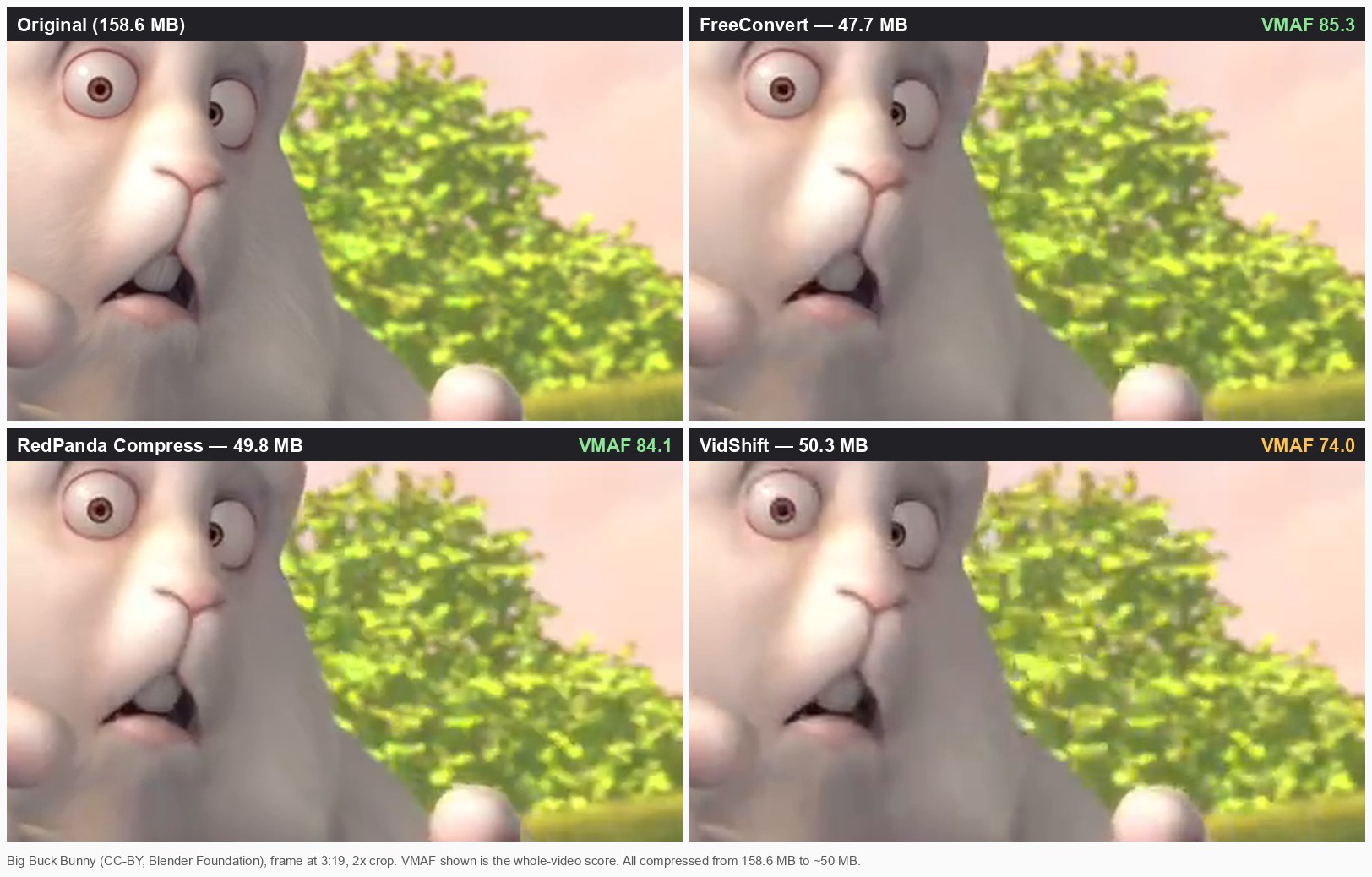
Quality:VMAF, Netflix’s open-source perceptual quality metric (0–100), comparing every output frame by frame against the original. As a rule of thumb, a gap of about 2 points is hard to see, and 6 or more is clearly visible.
Setup: an 8-core Apple Silicon Mac with 16 GB of memory, Chrome, and a connection of about 40 Mbps down / 15 Mbps up.
Which tools: the pages that rank on the first page of Google for “video compressor”, “compress video”, “compress video online” and “reduce video size”, ordered by estimated US search traffic (SEMrush, September 2026). FreeConvert alone gets more of that traffic than the next four combined.
One thing to keep in mind when reading the times: for any tool that uploads your video, the upload depends on your connection. At 15 Mbps up, sending 158 MB takes about a minute; on a 100 Mbps uplink it would take about 15 seconds. Tools that work inside your browser skip the upload entirely but depend on how fast your computer is instead.
Results at a glance
Tool
Total time upload + processing
File we got
VMAF
Watermark
VidShift in-browser
1:27 0 + 87 s
50.3 MB
74.0
No
VideoCompress.ai server
2:07 71 + 55 s
47.0 MB
85.0
No
FreeConvert server
2:10 59 + 70 s
47.7 MB
85.3
No
Compress2Go server
4:20 126 + 134 s
49.6 MB resized to 1024×576
78.5
No
RedPanda Compress in-browser
6:10 0 + 370 s
49.8 MB
84.1
No
OnlineConverter server
~18:35 ~940 + 175 s
48.6 MB
83.9
No
Clideo server
~3:23 48 + ~155 s
~48 MB
n/a*
Yes
HappyScribe server
4:54 93 + 201 s
25.9 MB**
67.7**
No
InVideo server
~2:52 62 + 110 s
31.0 MB** 60 fps
56.4**
No
8mb.video server
4:14 ~106 s incl. queue + 148 s
23.5 MB**
58.7**
No
VEED video editor
— could not complete
—
—
—
CapCut, Vimeo —
— account required
—
—
—
Same 158.6 MB, 9:56, 720p file for every tool. Target: about 50 MB. Times in minutes:seconds. *The download link failed on our connection, so we could not score the file. **These tools could not produce a file near 50 MB, so their scores are for a smaller file and are not directly comparable to the ~50 MB group.
The same frame (2× crop) from three ~50 MB results. FreeConvert and RedPanda Compress stay close to the original; VidShift’s hardware encoder shows blocky patches in the fur and leaves.
Tool-by-tool results
FreeConvert: the best quality at a size you choose
FreeConvert’s default settings let you type the target as a percentage of the original, and it uses a two-pass encode, which is why it hit the target precisely (47.7 MB) and scored highest (VMAF 85.3). Upload took 59 seconds and compression 70 seconds. Our previous test measured about 11 minutes, so it has become much faster.
Things to know: the page carries several large ads, including one above the tool itself. Free files are limited to 1 GB, and the free tier includes 20 “conversion minutes” per day with a maximum of 5 per file. Those minutes count server processing time, not video length; our 10-minute video used a little over one. A long 1080p or 4K video can exceed the per-file limit. Files are deleted from its servers after 8 hours.
RedPanda Compress: no upload, no daily limit
RedPanda Compress runs FFmpeg inside your browser, so there was no upload step at all: we typed 50 MB, pressed Start, and the finished file (49.8 MB) was already on our computer. Quality was 84.1, about a point behind FreeConvert, and there’s no watermark, sign-up or daily allowance.
The trade-off is speed. Because the work happens on your own processor, it took 6 min 10 s on our 8-core Mac. That made it slower than FreeConvert on our connection. On a slow upload, or with a large file where the upload would take longer than the compression, the balance shifts the other way. It is the option to choose when the video is private (client work, medical or legal footage, family videos), when it is too large for other tools’ free limits, or when you would rather not send it to a third party.
VidShift: the fastest, with a quality cost
VidShift also compresses locally, but it hands the job to your computer’s hardware video encoder. That made it the fastest tool we tested by a wide margin: 87 seconds, with a 50 MB target preset ready to go. Hardware encoders are built for speed rather than efficiency, though, and at the same file size its result scored 74.0. That’s about 10 points below FreeConvert and RedPanda, and you can see it as blockiness in detailed areas (see the image above). It’s a good choice for quick, casual sharing and a weaker one when the video needs to look its best.
VideoCompress.ai: very likely running on FreeConvert
VideoCompress.ai took 2 min 7 s and returned a 47.0 MB file with a VMAF of 85.0, almost identical to FreeConvert. That’s no coincidence. Here is what we found:
The same job ID in both places. VideoCompress.ai’s own interface tracked our job as task 6ab29777…3d47, and the finished file was then delivered from a FreeConvert server (server141-isny.freeconvert.com/task/6ab29777…3d47/).
The same encoder fingerprint. Its output carries exactly the same FFmpeg version and the same x264 build and settings (core 163 r3060, two-pass) as the file FreeConvert gave us directly.
A matching business model. FreeConvert sells an API built around exactly this flow: take a file from a URL, convert it, and hand it back.
Building on another company’s API is common and not wrong in itself. The practical point for you is that your video passes through two companies, and neither VideoCompress.ai’s homepage nor its privacy policy names FreeConvert. We can’t tell from the outside whether it’s an API customer or run by the same people. Apart from that, it charges one credit per job on a guest allowance, and shows an “install the app” pop-up during upload.
Compress2Go: on target, but it quietly shrank the picture
Compress2Go has a proper “Target file size” mode, and it landed right on it (49.6 MB) in 4 min 20 s. It accepted our 158 MB file without an account. Its FAQ still mentions a 50 MB free limit per upload, so that may vary. However, without asking, it reduced the resolution from 1280×720 to 1024×576. That cost quality (VMAF 78.5 when scaled back up for comparison). It also uses a credit/trial system behind the scenes.
OnlineConverter: good quality, very slow upload
OnlineConverter’s plain form produced a solid result: 48.6 MB and VMAF 83.9. But its upload ran at around 0.16 MB/s on the same connection that pushed about 2 MB/s to other services, so the whole job took about 18.5 minutes. Free uploads are capped at 200 MB. Watch out for the large green “Download” button next to the form. It is an advertisement, not the tool.
Clideo: watermark on the free version
Clideo has no size input, only three presets. “Basic” would have given us about 97 MB, “Strong” about 46 MB, and “Superb” requires a paid plan. With Strong, the job took about 3 min 23 s. The free result carries a “clideo.com” watermark, and removing it is a paid feature. The download link failed on our connection, so we couldn’t score the file’s quality this round.
HappyScribe: presets that miss, and an ad before downloading
HappyScribe’s page says it compresses “right in your browser”, but our video was uploaded to its servers. It offers three presets with size estimates, and the estimates were well off. “Smallest file” promised about 47.6 MB and delivered 25.9 MB. “Best balance” promised about 79 MB and delivered 70.6 MB. Neither comes near 50 MB. The 25.9 MB file scored 67.7. Before downloading, you’re asked to watch a short ad.
InVideo: no size control, and it converts to 60 fps
InVideo offers a quality slider but no target size. Even its highest-quality setting only produced 31.0 MB, and every result came back at 60 frames per second, although our video is 24 fps. Spreading the same data over two and a half times as many frames costs detail. Its best result scored 56.4 (we converted it back to 24 fps to compare frames), and the default setting scored 43.2.
8mb.video: the free sizes change from day to day
8mb.video is built around fixed sizes for Discord and chat apps. On our test day the site said its 20 MB and 50 MB options were “taking today off”, and choosing a custom size prompted a subscription. So we ran the nearest free option, 25 MB. After a short queue (“You are position 2 in line”), it finished in 4 min 14 s with a 23.5 MB file (VMAF 58.7 for this smaller size). It’s fine for squeezing a clip under a chat limit, less so for a specific size on a specific day.
VEED, CapCut and Vimeo
These three are full video platforms rather than one-step compressors. VEED’s compressor page opens its complete video editor; in our run the upload stalled before export became available, so we couldn’t finish the test. CapCut and Vimeo require you to create an account before you can compress anything. Vimeo notes that a free account is enough. If you only want a smaller file, all three involve more steps than the tools above.
What the numbers tell you
A size you can type beats a preset. The tools that let us enter a target (FreeConvert, RedPanda Compress, VidShift, Compress2Go, OnlineConverter) all landed within a few MB of it. HappyScribe’s and InVideo’s closest presets ended up 38–48% below it; Clideo’s “Strong” preset happened to land close.
At the same size, the encoder matters. Software x264 encoding (FreeConvert, RedPanda Compress, OnlineConverter) scored 84–85. The hardware encoder (VidShift) scored 74 at the same size.
“Fast” depends on where the work happens. Server tools are limited by your upload speed, and in-browser tools by your computer. For a big file on an average home connection, the upload is often the slowest part.
Read the fine print on “free”. Daily allowances, credits, rotating size options, ad-gated downloads, watermarks and silent resizing all showed up in this test. Only half of the tools we could complete returned the file at the size we asked for, at the original resolution, with nothing extra attached.
Frequently asked questions
What is the best free online video compressor?
It depends on what matters most to you. For the best quality at an exact size, FreeConvert scored highest in our test. If you’d rather not upload your video, RedPanda Compress came within about a point of it without the file ever leaving your device. VidShift was fastest but lost noticeable quality.
Do online video compressors keep my video?
Most upload your file to their servers and delete it later. FreeConvert says 8 hours, OnlineConverter 3 hours. In-browser tools such as RedPanda Compress and VidShift never upload the video at all. And as the VideoCompress.ai case shows, the site you use isn’t always the company that processes your file.
Why is my compressed video bigger or smaller than I expected?
Tools that only offer presets (“strong”, “balanced”, “high quality”) estimate the result. In our test those estimates were off by up to half. If you need to fit a limit, such as a 25 MB email attachment or a Discord upload, use a tool that lets you type the target size.
Which free compressors add a watermark?
In this test, only Clideo added a watermark to the free result. We couldn’t complete an export with VEED, so we can’t say for its current free plan.
How long should it take to compress a 10-minute video?
For our 10-minute 720p file, the good tools took between 1.5 and 6 minutes. Expect longer for 1080p or 4K. With server-based tools, add the time it takes to upload the file on your connection.
Conclusion
If you just need a good-looking file at a set size and don’t mind uploading it, FreeConvert did the best job in our test. If the video is private, very large, or you’d rather it never left your computer, RedPanda Compress gives nearly the same quality with no upload, no watermark and no daily limit. It asks a few more minutes of your time in return. And whichever tool you use, check that it lets you type the size you need.
Fei is a skilled software engineer. He previously worked at Google and now at a startup. His expertise includes web media processing, cloud architecture, complex algorithms, and AI training and deployment. Beyond work, Fei enjoys diving into new knowledge and is a big fan of strategy games.