Three weeks ago we ran six popular video-to-audio converters through the same file and published what came back. That round left a gap: Google’s first page for “extract audio from video” and “convert video to audio” is full of tools we had not touched, including Adobe Express, Restream, Biteable, Flonnect and the 123apps pair. So here is round two: eight more tools, the same 158 MB video, the same measurements, and one new wrinkle. Three of the eight now do the job inside your browser without uploading anything, and they turned out to be the three fastest.
Disclosure: this blog is published by RedPanda Compress, which is one of the tools in the table. It went through the same procedure as the others and its numbers are reported the same way.
The short answer
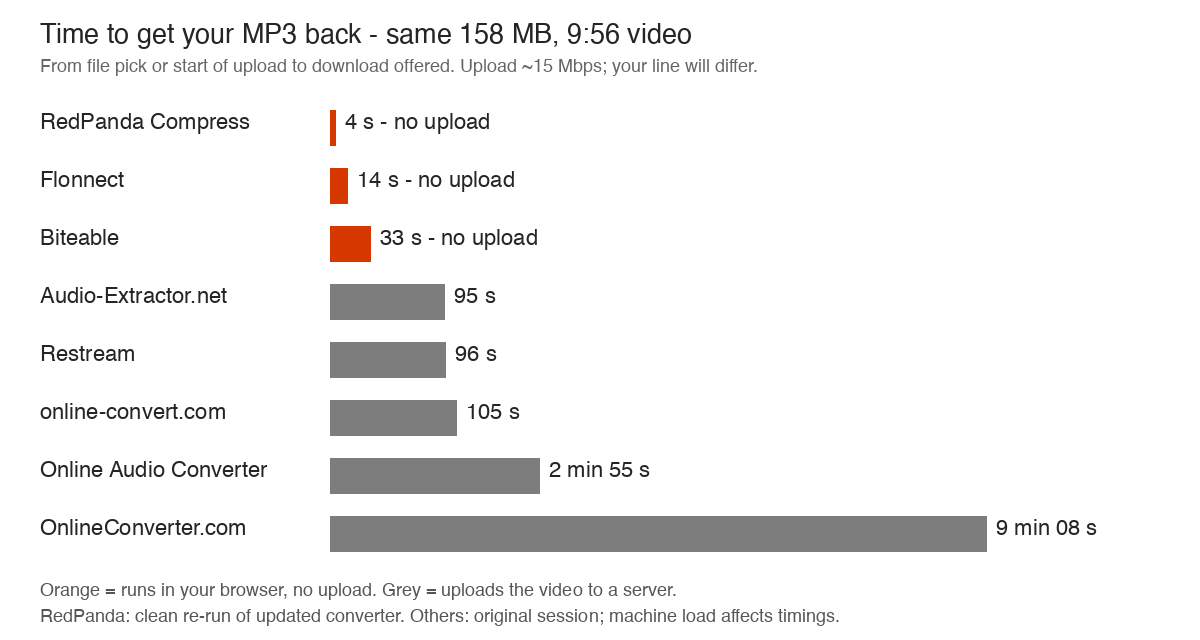
- Fast, and nothing leaves your computer: RedPanda Compress takes about 4 seconds, followed by Flonnect at 14 seconds and Biteable at 33 seconds. All three extract the audio in the browser. Every tool that uploads took between a minute and a half and nine minutes for the same file, almost all of it upload time.
- Best default MP3 quality among the upload tools: Restream, with a 237 kbps variable-bitrate file that kept all of the original’s treble. It did, however, clip two-thirds of a second off the end.
- Watch the defaults: four of the eight hand you a 128 kbps MP3 unless you change a setting, and all four measurably thinned the top of the sound. The two 123apps sites (Online Audio Converter and Audio-Extractor.net) also quietly resample 48 kHz audio down to 44.1 kHz.
- Did not finish: Adobe Express never produced a file in three attempts.
How we tested
The file: the same one as round one, Big Buck Bunny (CC-BY, Blender Foundation), 9 min 56 s, 158.6 MB, with a 130 kbps AAC stereo soundtrack at 48 kHz. Anyone can download it and repeat the test.
Which tools: everything on Google’s first page (US, 11 October 2026) for “video to audio converter”, “extract audio from video online” and “convert video to audio” that round one had not already covered. We left out app-store listings, sites built around pasting a YouTube link, and tools that will not let you export without creating an account (Canva, VEED and CapCut all fall into that last group).
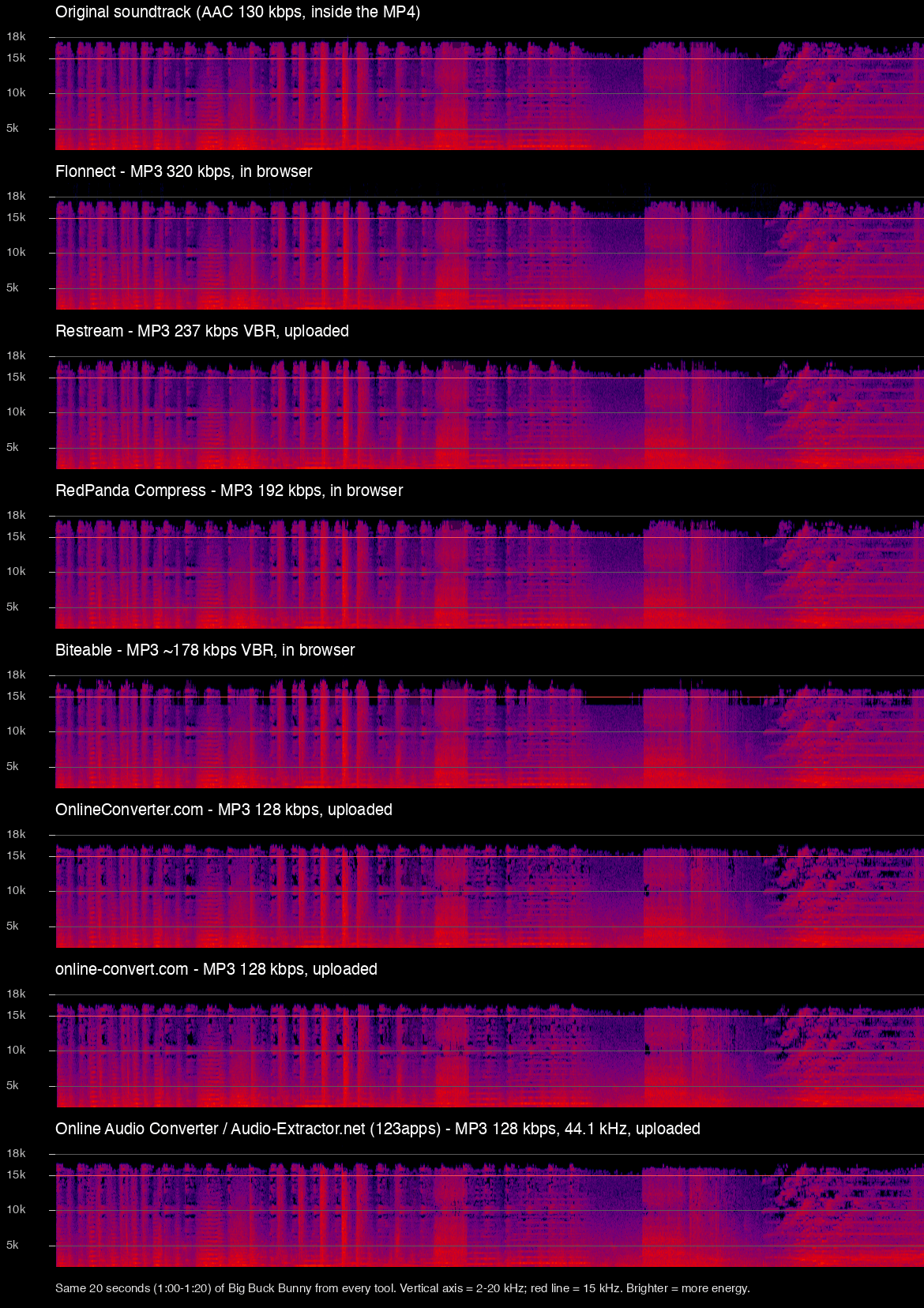
What we measured: time from picking the file to the download being offered, with upload and processing separated where the tool shows both; the format, bitrate, sample rate and length of the file that came back; whether anything was uploaded, by watching every request the page made; and treble retention, measured as how much energy above 15 kHz survived compared with the original soundtrack. Within a few tenths of a decibel is a clean copy; a full decibel is audible detail gone. Every tool ran at its defaults.
Setup: an 8-core Apple Silicon Mac, Chrome, roughly 15 Mbps upload. Upload times depend on your own connection, so treat them as a shape rather than a promise.
Results
| Tool | Uploads your video? | Time | Output (default) | Treble kept* | Notes |
|---|---|---|---|---|---|
| RedPanda Compress | No, runs in browser | 4 s | MP3 192 kbps, 48 kHz, 14.3 MB | −0.05 dB | No limits; see engineering note |
| Flonnect | No, runs in browser | 14 s | MP3 320 kbps, 48 kHz, 23.9 MB | +0.03 dB | Biggest file of the test |
| Biteable | No, runs in browser | 33 s | MP3 ~178 kbps VBR, 48 kHz, 13.2 MB | +0.12 dB | 500 MB limit |
| Audio-Extractor.net (123apps) | Yes | 1 min 35 s | MP3 128 kbps, 44.1 kHz, 9.5 MB | −1.04 dB | Resampled; same backend as Online Audio Converter |
| Restream | Yes | 1 min 36 s | MP3 237 kbps VBR, 48 kHz, 17.6 MB | +0.08 dB | Output 0.65 s shorter than the source |
| online-convert.com | Yes | 1 min 45 s | MP3 128 kbps, 48 kHz, 9.5 MB | −0.58 dB | Default is labelled “keep original bitrate” |
| Online Audio Converter (123apps) | Yes | 2 min 55 s | MP3 128 kbps, 44.1 kHz, 9.5 MB | −1.04 dB | Resampled; quality slider defaults to “Standard” |
| OnlineConverter.com | Yes | 9 min 8 s | MP3 128 kbps, 48 kHz, 9.5 MB | −0.37 dB | 200 MB limit; slowest upload |
| Adobe Express | Unknown | Did not finish | — | — | Three attempts, no file |
*Energy above 15 kHz compared with the original soundtrack; closer to zero is better. Small positive numbers are measurement noise, not added detail. RedPanda’s timing and treble measurement are from a clean re-run of the updated converter; the other results are from the original comparison session. In-browser times depend on machine load: Biteable took 7–10 seconds in a separate clean re-run, so the timings are not a controlled speed ranking.
The big change since round one: converters that never upload
In September, RedPanda Compress was the only tool in the test that processed the file locally. This time there are three. Flonnect’s media tools and Biteable’s audio extractor both do the work inside the browser tab with WebAssembly, and both say so on the page. Biteable even warns that a large file “may run out of memory on a phone”, which is the honest trade-off of doing the work on your own device instead of a server.
The practical effect is on the clock. The whole-file upload is the slow part of every server-side converter, and these three skip it. On our connection the upload alone cost between 45 seconds and nearly nine minutes; the three local tools finished in seconds, with RedPanda taking about 4 seconds. On a slower or metered connection the gap gets wider. The second effect is privacy: we watched every network request from each page while it worked, and none of the three sent the video anywhere. For a recording of a meeting, a lecture or a family video, that is the difference between converting a file and handing it to a stranger. If you want to check this for yourself on any tool, we wrote up the method in Are online file converters safe?
What the defaults actually give you
Every tool here can make an MP3. The file you get without touching any settings is a different story, and the spread is wide: from 128 kbps to 320 kbps for the same source.
128 kbps is the most common default, and it costs you something. Four of the eight tools, including both 123apps sites, online-convert.com and OnlineConverter.com, encode at 128 kbps unless you change a setting. All four measurably trimmed the top octave; the 123apps pair lost about a decibel above 15 kHz, the most of anything we tested, and both also resampled the 48 kHz track to 44.1 kHz without saying so. For a podcast or a lecture you may never notice. For music it is the difference between “fine” and “slightly dull”, and it is avoidable by moving a slider.
320 kbps is the other extreme, and it is mostly wasted. Flonnect’s default produced a 23.9 MB file from a soundtrack that only contained 9.8 MB of AAC data to begin with. An MP3 cannot contain more detail than the audio it was made from, so the extra megabytes buy nothing; they just make the file two and a half times larger than it needs to be. Flonnect’s quality was perfect, which is exactly what you would expect at that bitrate, but 192 kbps would have been just as perfect at 60 percent of the size.
The middle is where the sensible defaults live. Restream (237 kbps variable), RedPanda Compress (192 kbps) and Biteable (around 178 kbps variable) all kept the treble intact and produced files between 13 and 18 MB. Any of those is a reasonable file to keep.
Tool by tool
Flonnect: fast, but the file is bigger than it needs to be
Flonnect’s extractor finished our 10-minute video in 14 seconds, entirely in the browser, and the output was a textbook 320 kbps LAME-encoded MP3 at 48 kHz with nothing missing. It offers WAV and AAC as well, and notes that audio will be copied without re-encoding “when possible”; in our test the AAC option did not copy the original AAC track but re-encoded it at 184 kbps, so that promise did not apply to the most common case. The only knock is the default bitrate, which more than doubles the size of the audio you started with. If you are sending the file anywhere, pick a lower rate. One small oddity: the page’s preview player never loaded our file, but the extraction itself worked without it.
Biteable: local, quick, and honest about its limits
Biteable’s tool also runs in the browser, took 33 seconds, and produced a clean variable-bitrate MP3 averaging about 178 kbps. It caps files at 500 MB and tells you up front that big files can be slow on a phone. There is a trim control if you only want part of the audio, and no account is needed.
RedPanda Compress: starts the moment you pick the file
Our own MP4 to MP3 converter began encoding as soon as the file was selected and offered the download about 4 seconds later: a 192 kbps MP3 at the original 48 kHz, with no measurable treble loss and no upload. The engineering note below explains how parallel encoding makes this possible. There are no size or length limits because the file never leaves your device; a two-hour recording just takes proportionally longer. As in round one, the audio converter can also lift the original AAC track straight out of the video as an M4A in a couple of seconds, with no re-encoding at all, which is still the best option if your destination plays M4A.
Restream: the best upload-based default, with a trimmed ending
Restream’s audio extractor needed no sign-up, uploaded our file in about 45 seconds and had the MP3 ready about 50 seconds after that. The output was the highest-quality server-side result in the test: a 237 kbps variable-bitrate MP3 that kept every bit of the treble. The one thing to know is that the file came back 0.65 seconds shorter than the video. For a lecture that is nothing; for a song that ends on a held note, check the last second before you delete the original.
Online Audio Converter and Audio-Extractor.net: the same engine twice
Both sites belong to 123apps and both returned exactly the same file, byte for byte: a 128 kbps MP3 resampled from 48 kHz to 44.1 kHz, with the biggest treble loss of the round. Online Audio Converter has a quality slider whose default is “Standard 128 kbps”; drag it to “Good” or “Best” before you convert. Audio-Extractor.net has no quality control at all for MP3. Both upload the whole video first; the slower of the two took almost three minutes on our connection, the faster about a minute and a half, and the difference appeared to be which upload server each page picked.
online-convert.com: “keep original bitrate” does not mean what it says
online-convert.com’s MP3 page selects “Keep original bitrate” by default, which sounds like the safe choice. The file that came back was a 128 kbps constant-bitrate MP3, a step down from the 130 kbps source and with a measurable half-decibel of treble gone. The site exposes a full set of variable and constant bitrate options if you open the optional settings, and the upload itself finished in under two minutes. Pick a bitrate explicitly and it is a fine tool.
OnlineConverter.com: nine minutes, a 200 MB cap, and a decoy button
OnlineConverter.com produced a perfectly usable 128 kbps MP3 at 48 kHz, with less treble loss than the other 128 kbps tools. Getting it took just over nine minutes, nearly all of it a slow upload to the site’s server. Files are capped at 200 MB, which rules out most phone videos longer than a few minutes. Be careful on the page itself: a large green “DOWNLOAD” button sits right next to the real form, and it installs a browser extension, not your file. The real controls are the small grey ones.
Adobe Express: three attempts, no file
Adobe’s free MP4 to MP3 page accepted our video and showed its editing panel, then stalled with a five-second placeholder in the player and the Download button greyed out. We tried the full 158 MB file twice and a 29 MB clip once, waiting a minute or more each time, and never got past that screen. The page advertises a 1 GB limit, so size should not have been the problem. We drove the page by script rather than by hand, so it is possible a human clicking through would fare better; we are reporting what we saw.
What to check before you convert
- Does it upload? If the page shows an upload progress bar, your video is going to someone’s server. For anything private, use a tool that runs locally.
- What bitrate is the default? 128 kbps is common and audibly softer on music. 160 to 192 kbps is the sweet spot for a file you will keep; 320 kbps only makes sense if the source itself was that good.
- Do you need MP3 at all? The audio inside an MP4 is usually AAC. Copying it out as M4A takes seconds and loses nothing. Only convert to MP3 for a player or platform that demands it.
- Check the length. One tool in this round trimmed the end. Compare the duration of the MP3 with the video before you throw the original away.
Engineering note: how we made MP3 extraction faster
Profiling our own converter on this file showed where the time went: decoding the AAC track took about a second, and most of the remaining work was MP3 encoding. We run LAME, compiled to WebAssembly. Two changes made it faster. First, we set its encoding effort to LAME’s own command-line default, using ffmpeg’s -compression_level 5. In the worker benchmark this reduced encoding time from 8.3 to 6.9 seconds without a measurable change in treble retention. Second, and more importantly, LAME is single-threaded, so we split the track into independent slices and encode them in parallel. The eight-core test machine used four workers; the converter caps this at four and reduces the count on devices with less memory or fewer cores. Each cut sits on the 1,152-sample MP3 frame grid, with three extra frames on either side to give the encoder context. We disable the bit reservoir so a kept frame never depends on bytes in a discarded frame, trim the extra frames, join the results, and repair the Xing/LAME header so duration, seeking and gapless playback remain correct. Validation confirmed the expected decoded sample count and a treble-energy difference of only −0.05 dB from the source.
On the test file, end-to-end conversion fell from 9–12 seconds with a single worker to 3.6–4.2 seconds with parallel encoding, which we round to 4 seconds in the table. The parallel path handles MP3 encoding for inputs at least 30 seconds long at 32, 44.1 or 48 kHz when the device has enough cores and memory. Any worker error, stall or short slice sends the job back to the single-worker path automatically. We also tried a SIMD build of the encoder; its extra speed was too small to justify a larger download and an additional compatibility path, so we left it out.
Frequently asked questions
What is the best free tool to extract audio from a video?
For speed and privacy, one of the three that run in your browser: Flonnect, Biteable or RedPanda Compress. All three finished our 10-minute, 158 MB test in under 40 seconds without uploading it. If you prefer a server-side tool, Restream had the best default quality in this round, and CloudConvert had it in round one.
Does extracting audio from a video lose quality?
Converting to MP3 always re-encodes, and at 128 kbps the loss is measurable: every 128 kbps tool here trimmed the top of the sound. At 192 kbps or above the loss was below what our measurement could detect. Copying the original AAC track out as an M4A loses nothing at all.
Why is the MP3 bigger than the audio in the video?
Because the tool encoded at a higher bitrate than the source. Our video carried 130 kbps of audio; a 320 kbps MP3 of it is 2.4 times larger with no extra detail to show for it. Pick a bitrate close to or a little above the source.
Can I extract audio from a video on my phone without uploading it?
Yes, the in-browser tools work on phones too, but they do the encoding on the phone’s own processor and memory, so a long video takes longer and a very large one can fail. Biteable says so on its page; the same applies to the others. For a long recording, a laptop is the comfortable choice.
Conclusion
The headline from round two is that the “upload it and wait” model is no longer the only way to get audio out of a video online. Three of the eight tools do it locally, in well under a minute, with nothing sent anywhere, and the quality of their output was as good as or better than the upload-based tools at their defaults. Beyond that, the lesson from round one still holds: the default bitrate decides what you get far more than the brand on the page. If you want to try the local route, RedPanda Compress converts MP4 to MP3 in your browser, keeps the file on your device, and has no size limit.

Fei is a skilled software engineer. He previously worked at Google and now at a startup. His expertise includes web media processing, cloud architecture, complex algorithms, and AI training and deployment. Beyond work, Fei enjoys diving into new knowledge and is a big fan of strategy games.
Leave a Reply