Pulling the audio out of a video looks like the simplest job on the internet, and most tools make it look identical: drop in an MP4, get an MP3. But the file you get back is not the same from tool to tool. We ran the same video through the most popular video to audio converters and measured what actually came out — bitrate, sample rate, how much of the original sound survived, and how long each one took.
Disclosure: this blog is published by RedPanda Compress, which is one of the tools tested. It went through the same procedure as the others, and the numbers are reported the same way.
The short answer
- If you want an MP3 and the best quality: CloudConvert. Its default is a 234 kbps VBR MP3, which kept everything that was in the original track, and it finished in 96 seconds. Free use is capped at 10 conversions a day.
- If you don’t want to upload the video: RedPanda Compress converts in your browser, so there’s no upload at all. It writes a 192 kbps MP3 in about 80 seconds with no measurable loss.
- If you want zero quality loss: don’t convert to MP3 at all. Keep the audio exactly as it already is inside the video (an M4A file). In our test that took 2.2 seconds and produced a bit-for-bit copy of the original track. More on that below.
- Watch the default bitrate: FreeConvert and HappyScribe both default to 128 kbps, the lowest setting of anything we tested, and both measurably thinned out the top end.
How we tested
- The file: the same video we used for our video compressor comparison — Big Buck Bunny (CC-BY, Blender Foundation), 9 min 56 s, 158.6 MB, with a 130 kbps AAC stereo soundtrack at 48 kHz. Anyone can download it and repeat these tests.
- What we measured: time (upload and processing separately where the tool shows both), the size and format of the file that came back, its bitrate, sample rate and channel count, whether the full 9:56 survived, and the free-tier limits we hit.
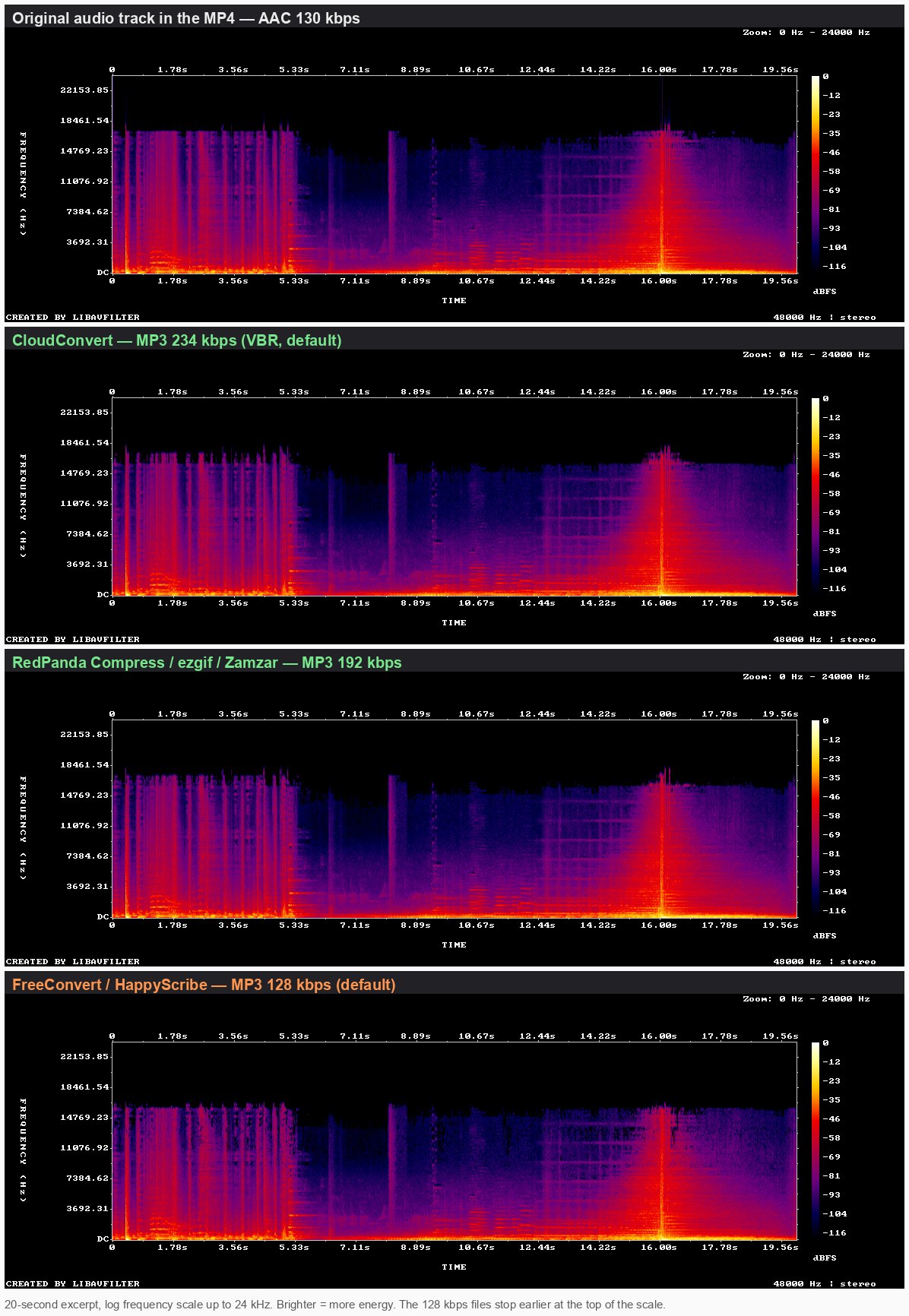
- Quality: MP3 encoders throw away the highest frequencies first, so we measured how much energy above 15 kHz survived in each output compared with the original track. A result within a few tenths of a decibel is effectively a clean copy; more than a decibel means audible detail has gone.
- Which tools: the pages that rank on the first page of Google for “video to mp3” and “mp4 to mp3”, ordered by estimated US search traffic (SEMrush, September 2026). Downloader sites aimed at YouTube links rather than your own files were left out.
- Setup: an 8-core Apple Silicon Mac, Chrome, about 40 Mbps down and 15 Mbps up. For tools that upload, the upload depends on your own connection.
Results
| Tool | Time | Output | Treble kept* | Free limits |
|---|---|---|---|---|
| RedPanda Compress M4A, no re-encoding | 2.2 s | 9.80 MB AAC 130 kbps | identical | none; in browser |
| RedPanda Compress MP3 | ~80 s no upload | 14.3 MB MP3 192 kbps | −0.08 dB | none; in browser |
| CloudConvert | 96 s | 17.5 MB MP3 234 kbps VBR | +0.19 dB | 10 conversions/day, 1 GB, 5 min processing |
| ezgif | 102 s 82 s upload + 20 s | 14.3 MB MP3 192 kbps | −0.04 dB | 200 MB per file |
| Zamzar | under 1 min 35 MB clip only | MP3 192 kbps | −0.11 dB | 50 MB per file |
| FreeConvert | ~4 min mostly upload | 9.5 MB MP3 128 kbps | −1.42 dB | 1 GB, daily processing allowance |
| HappyScribe | ~17 min 43 s upload + ~16 min | 9.5 MB MP3 128 kbps | −1.42 dB | watch an ad to download |
The fastest, cleanest option isn’t an MP3 at all
The audio inside an MP4 is already a compressed, finished file — usually AAC. Converting it to MP3 means decoding it and compressing it a second time, which always loses a little and takes real processing time. But you can also just lift that audio out and put it in its own container, without touching the audio data. The result is an M4A file.
We tried this with RedPanda Compress’s audio converter set to M4A. It finished in 2.2 seconds and produced a 9.8 MB file. We then compared the audio stream inside it with the audio stream inside the original video: the checksums were identical. Not “almost the same” — the same bytes, with nothing re-encoded. CloudConvert exposes the same idea in its options, where the audio codec can be set to “copy” instead of MP3.
M4A plays on iPhones, Macs, Android, Windows and every browser. The one place it can still be awkward is older car stereos and cheap MP3 players, which is the main reason to pick MP3 anyway. If your destination takes M4A, this is the option to use: it’s instant and it’s lossless.
Tool by tool
CloudConvert: the best MP3 defaults
CloudConvert was the only tool that defaulted to a genuinely high-quality MP3: variable bitrate averaging 234 kbps, which measured slightly cleaner in the treble than our reference. It took 96 seconds from drop to download, and its options panel is the most complete of the group — bitrate, VBR quality, sample rate, volume, trimming, and the “copy” codec mentioned above. The free tier allows 10 conversions per day with a 1 GB file limit and a 5-minute processing cap.
RedPanda Compress: nothing is uploaded
Because the conversion runs inside the browser, the 158 MB video never went anywhere: the MP3 appeared after about 80 seconds of local processing (69 to 104 seconds across three runs) at 192 kbps, with no measurable treble loss. There’s no account, no daily limit and no watermark, and the M4A route above finished in seconds. The trade-off is that the work happens on your machine, so an older laptop will take longer, and a very long file depends on your available memory.
ezgif: plain, fast, and it tells you what the bitrates mean
ezgif’s page looks like it was built in 2009 and works better than most of the modern ones. Upload took 82 seconds, conversion 20, and the default 192 kbps output matched the original’s treble almost exactly. The page even includes a small table explaining what 128, 192, 256 and 320 kbps are each good for. The limit is 200 MB per file, and there are ads down both sides.
Zamzar: fine, if your file is under 50 MB
Zamzar’s free tier stops at 50 MB, so our 158 MB test file was never an option. We gave it a 35 MB clip instead: it converted in well under a minute to a 192 kbps MP3 with no measurable loss, and the download needed no account. For a short clip it’s perfectly good; for a full-length video the size cap rules it out unless you pay.
FreeConvert: 128 kbps by default
FreeConvert handled the file without complaint, but its default output was a 128 kbps MP3 — the same nominal bitrate as the original AAC track, which is exactly the situation where a second round of compression does visible damage. Our measurement showed 1.4 dB less energy above 15 kHz than the original, and the spectrogram shows the cut-off clearly. You can raise the bitrate in the advanced options, but most people won’t. The whole job took about four minutes on our connection, nearly all of it upload.
HappyScribe: slow, and an ad stands between you and the file
HappyScribe uploaded the file quickly — 43 seconds, the fastest upload in the group — and then spent roughly sixteen minutes converting it, by far the longest of anything we tested. The result was another 128 kbps MP3 with the same 1.4 dB of lost treble. Before you can download it, the page asks you to watch a short ad. There are no bitrate options at all.
What to check before you convert
- Find the bitrate setting. It’s the single thing that decides quality. If a tool won’t tell you what bitrate it writes, assume 128 kbps. For speech — lectures, interviews, podcasts — 128 is genuinely fine. For music, ask for 192 or higher.
- Don’t convert twice. The audio in your video has already been compressed once. Every MP3 conversion is a second pass. Going straight to M4A skips that entirely.
- Check the size limit before you start. Zamzar stops at 50 MB free, ezgif at 200 MB, CloudConvert and FreeConvert at 1 GB. In-browser tools are limited by your device instead.
- Remember the upload. On a normal home connection, sending a 158 MB video takes longer than converting it. If you only need the audio, the tools that never upload finish while the others are still transferring.
Frequently asked questions
What is the best free video to audio converter?
For an MP3 with good default settings, CloudConvert produced the best result in our test. If you’d rather not upload the video, RedPanda Compress reached almost the same quality with nothing leaving your device. If your player accepts M4A, extracting without re-encoding beats both, and takes seconds.
Does converting video to MP3 lose quality?
Yes, a little, because the audio is compressed a second time. How much depends on the bitrate: at 192 kbps and above we could not measure a meaningful difference from the original; at 128 kbps we could. Extracting to M4A loses nothing at all.
What bitrate should I choose?
192 kbps is the sensible default for music and general use — it was enough to keep everything measurable in our test. 128 kbps is fine for speech and halves the file size. Going above 256 kbps mostly adds file size, since it cannot restore detail the original video didn’t have.
Can I extract audio from MOV, MKV or WebM too?
Yes. Every tool here accepts the common video containers. We have dedicated pages for MOV, MKV and WebM, and a step-by-step guide to extracting audio from video.
Conclusion
Every tool here will give you an audio file, and for a lecture recording any of them is fine. The differences show up when the soundtrack is music: a 128 kbps default quietly costs you the top of the range, while 192 kbps or better keeps what the video had. And if you don’t specifically need an MP3, the fastest and cleanest answer is to take the audio out as it is — no second compression, no waiting.
Related reading: Best Free Online Video Compressor 2026 · MP3, AAC, WAV, FLAC and Opus compared · How an in-browser audio converter actually works

Fei is a skilled software engineer. He previously worked at Google and now at a startup. His expertise includes web media processing, cloud architecture, complex algorithms, and AI training and deployment. Beyond work, Fei enjoys diving into new knowledge and is a big fan of strategy games.
Leave a Reply