
A file can be too large for an online video converter before conversion even starts. For a multi-gigabyte MKV, the first questions are whether the free plan accepts it, whether its video and audio can simply be copied into MP4, and whether your device has enough working space. We put a 2.48 GB MKV through RedPanda Compress’s live converter and checked the published free-plan limits of four other services against that same file.
Disclosure: RedPanda Compress publishes this blog and is one of the tools discussed. The large-file conversion below is a single observed run on our public site. The other four entries are documented eligibility checks, not timed conversions or quality scores.
The 2.48 GB test: what actually happened
Our synthetic source was an 80-minute, 1280 × 720 MKV containing H.264 video at 30 frames per second and AAC audio. It measured 2,479,917,215 bytes (2.48 decimal GB). We made it by stream-copy concatenating a repository test clip 40 times and wrapping the result in MKV; it contains no personal footage. On November 1, 2026, we selected that file on the public MKV to MP4 page in desktop Chrome 155, which reported 16 GB of device memory and eight logical cores.
The page selected the stream-copy path and reached Conversion complete in 11.5 seconds. It displayed an MP4 with H.264 video, original audio, and a 2,367.07 MB size label, then offered a Download MP4 link. That is a live-page result, not the 11.4-second result from an earlier local build. This session’s browser download bridge did not save the production blob for independent probing, so we do not claim a production output hash or playback check. An earlier local-build test with the same source did save an MP4 and match the video and audio stream hashes, but its result is separate from this production timing.
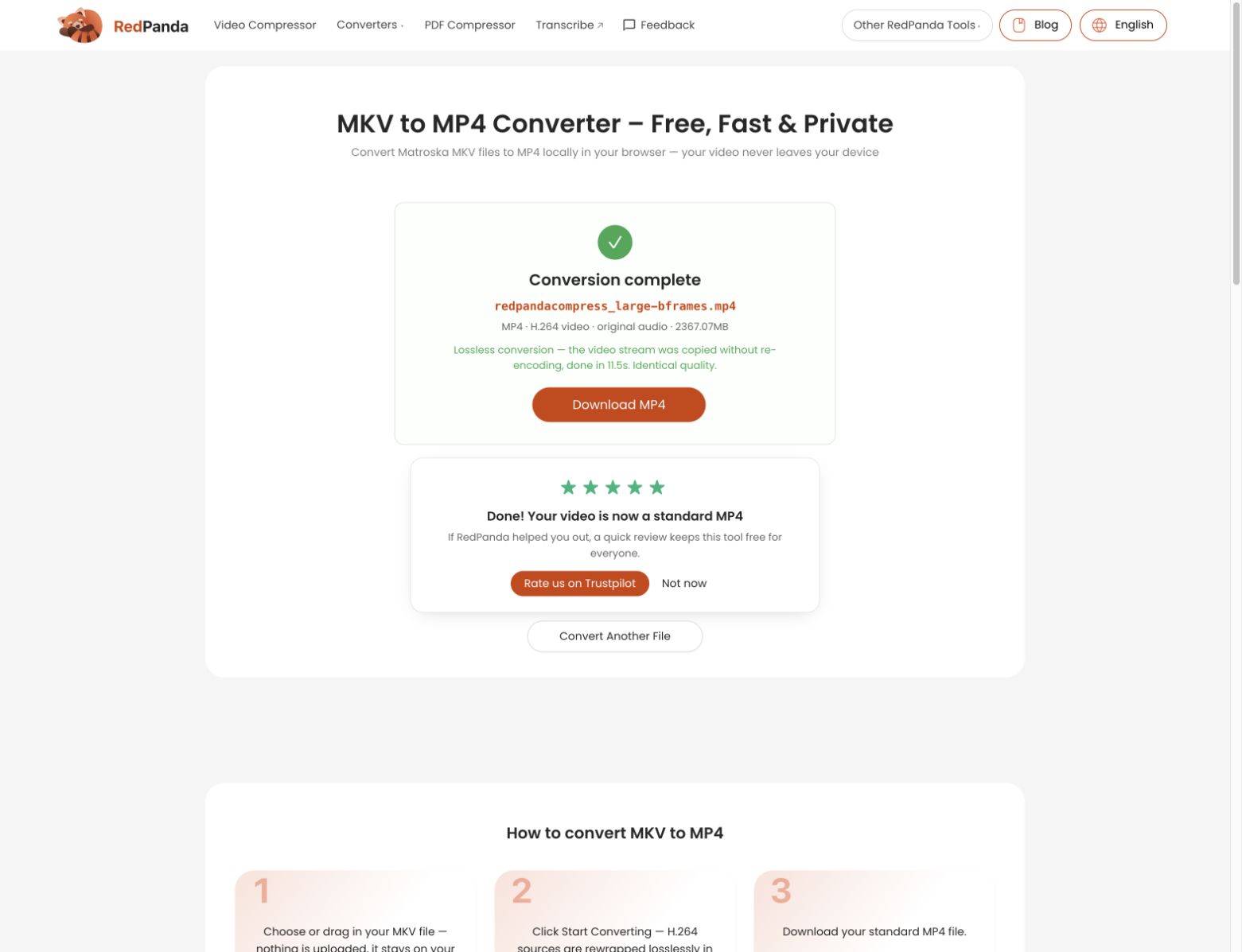
One run is a demonstration, not a speed guarantee. Another browser, codec, disk, or file structure can behave differently. The key result for this case is that the public site accepted a file above 2 GB and completed a copy path instead of forcing an 80-minute re-encode.
Five online options against the same large-file question
We checked these pages on November 1, 2026. A published size limit is evidence that this 2.48 GB file is outside a free tier; it is not evidence about the service’s conversion quality or paid-plan speed. We did not upload this multi-gigabyte fixture to a plan whose own documentation rules it out.
| Tool and free-plan evidence | Result for our 2.48 GB MKV |
|---|---|
| RedPanda Compress — the desktop page showed an 8 GB device limit | Live conversion completed via stream copy in 11.5 s; output link shown. Browser processing, no media upload. |
| CloudConvert — free pricing lists a 1 GB maximum and five minutes of processing | Above the documented free limit; no conversion run. Larger paid jobs may be possible. |
| FreeConvert — video converter shows a 1 GB maximum; pricing lists five free processing minutes per file | Above the displayed free size limit; no conversion run. Paid tiers list larger ceilings. |
| Convertio — its terms list 100 MB free, while its help page says up to 1 GB | Both published figures are below 2.48 GB; no conversion run. Check the current on-page limit for your account. |
| Online-Convert — help lists 75 MB for free upload and conversion | Above the documented free limit; no conversion run. |
This table answers a narrow question: could the same large file be attempted on each free plan? It does not rank all five by speed. Paid cloud plans, account allowances, and features can change; consult the linked pages before committing time or money to a multi-gigabyte upload.
Why remuxing a big file can take seconds
MKV and MP4 are containers. H.264 and AAC are the actual video and audio formats inside our sample. Since those streams already fit a broadly compatible MP4, a converter can copy their encoded packets into a new container without decoding and encoding every frame. That is called remuxing. It preserves the copied media quality and usually leaves the file about the same size. It is a format-change tool, not a compression trick.
Large-file support needs more than an 8 GB label. A browser path that first holds the entire source or finished MP4 in a small WebAssembly memory space can fail even when the codecs are copyable. The deployed RedPanda path reads compatible large inputs in pieces and writes MP4 output to browser-managed disk storage. It still needs available local disk space, a capable desktop browser, and a file structure it can parse. We tested one ordinary H.264/AAC MKV, not every Matroska variant.
MKV, AVI, and WebM are not interchangeable speed promises
The extension alone cannot tell you whether a file can be remuxed. A compatible H.264/AAC stream in an AVI may be copyable, while an older Xvid or MJPEG AVI needs video re-encoding for a standard H.264 MP4. A typical VP9 or VP8 WebM also needs re-encoding. In a separate, very small VP9 WebM check on the public WebM converter, RedPanda identified VP9, chose H.264 re-encoding, and completed. That check verifies routing only; it says nothing about the speed or success rate of a 2 GB VP9 recording.
Re-encoding is often much slower and can change image quality and file size. An MKV with unsupported audio, extra tracks, subtitles, unusual metadata, or a damaged index may also take a different path. Check the tool’s message after choosing the file. For a private or irreplaceable recording, keep the original and inspect the downloaded MP4 before deleting anything.
A practical workflow for a multi-gigabyte file
- Inspect the codecs, not just the extension. If the video is H.264 and the audio is AAC, a lossless container copy may be possible. VP9, Xvid, and other codecs generally need re-encoding for H.264 MP4.
- Check the actual free limit before uploading. For a 2.48 GB file, a 75 MB or 1 GB free ceiling ends the test before processing. A cloud paid plan may accept it, but also adds upload and download time.
- Use a desktop browser with room to work. On RedPanda’s video converter, the media file stays on your device. Keep the tab open and leave local disk space for the MP4 as well as the source.
- Verify the saved result. Play the start, middle, and end; check audio sync, duration, actual bytes, and the first audio track you intended to keep. Remuxing does not guarantee every subtitle or extra track survives.
Frequently asked questions
Will remuxing my 2 GB MKV make it smaller?
Usually not by much. It copies compressed video and audio into a different container. If your goal is a smaller download, you need a compression or re-encoding step, and you should inspect the resulting quality.
Is an 8 GB on-page limit a promise that every file will finish?
No. The displayed limit is conditional on the browser and device. Codec compatibility, unusual container structures, free disk space, and browser stability still matter. Our 2.48 GB H.264/AAC MKV completed; that does not establish an 8 GB success rate.
Can a large WebM convert just as fast?
Usually no when it contains VP8 or VP9. A broadly compatible H.264 MP4 needs new video encoding. Our small VP9 check completed on the re-encode path, but we did not benchmark a multi-gigabyte WebM here.
Should I use a cloud service instead?
That can make sense if you need a paid high-capacity plan, cloud storage integration, or a conversion your local browser cannot complete. Allow for the upload and download of several gigabytes and review the service’s current privacy and retention terms. If your H.264/AAC file is copyable and you want its media bytes to stay on your device, try the local MKV to MP4 path and verify the saved file.

Fei is a skilled software engineer. He previously worked at Google and now at a startup. His expertise includes web media processing, cloud architecture, complex algorithms, and AI training and deployment. Beyond work, Fei enjoys diving into new knowledge and is a big fan of strategy games.
Leave a Reply